Due to some reason I cannot continue making videos on Unity Car Game Tutorial Series, however I will be writing posts on it instead, hope you will appreciate the posts as you did for the videos. So let's kick off then.
In this bit of the tutorial we will be adding AI Cars to our game. Follow the steps below carefully and you shall be successful in adding AI cars and make the race game more enjoyable.
(Try to use a track which is flat and does not include up's and down's, like in the unity3d demo project)
Step 1: Drag the Car transform from the 'Project' section into the 'Hierarchy' section and name it as (say) 'AICar' (Search for 'car' in the 'search' bar in 'project' section)
Step 2: Create a Javascript named AICar_Script and add the code from the link here
Step 3: Replace the 'Car' script of the 'AICar' with the AICar_Script script
Step 4: Now create WheelColliders for the rest 3 wheels as well, as we had did it earlier for the Front Wheel (Simply duplicate WHeelFL by clicking on it once and pressing 'ctrl+d' and rename them as 'WheelFR', 'WheelRL', 'WheelRR') and synchronize them with the 3 wheels (the two images below should help in clearing doubts, if any).


Step 5: Now drag the wheels and the wheelcolliders onto the hierarchy as in the image below

Step 6: Go to GameObject and create an empty Gameobject and rename it as 'WaypointContainer'
Step 7: Go to GameObject -> Create Other -> Sphere and create a sphere, and move it onto the WaypointContainer gameobject, and place the sphere on the terrain as if it is just kissing the surface, this is our first waypoint.
Step 8: Create waypoints like this all along the way, so that your AI car follows the waypoints (more the waypoints, better the result.) The Images below might help in clearing this point (The spheres or the small dots you see in the image on the right are the waypoints)


Step 9: Now drag this WaypointContainer onto the Waypoint Container of the AICar_Script as shown in the image below
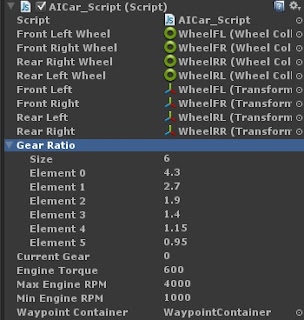
Step 10: Set the Gear Ratio to the values shown in the image above.
This is it, if you have followed this post correctly then you should have an AICar in your race game.
You can follow the same steps to create more AICars.
Hopefully this post is clear and hope this helped you, comment if you have any issues.
In this bit of the tutorial we will be adding AI Cars to our game. Follow the steps below carefully and you shall be successful in adding AI cars and make the race game more enjoyable.
(Try to use a track which is flat and does not include up's and down's, like in the unity3d demo project)
Step 1: Drag the Car transform from the 'Project' section into the 'Hierarchy' section and name it as (say) 'AICar' (Search for 'car' in the 'search' bar in 'project' section)
Step 2: Create a Javascript named AICar_Script and add the code from the link here
Step 3: Replace the 'Car' script of the 'AICar' with the AICar_Script script
Step 4: Now create WheelColliders for the rest 3 wheels as well, as we had did it earlier for the Front Wheel (Simply duplicate WHeelFL by clicking on it once and pressing 'ctrl+d' and rename them as 'WheelFR', 'WheelRL', 'WheelRR') and synchronize them with the 3 wheels (the two images below should help in clearing doubts, if any).


Step 5: Now drag the wheels and the wheelcolliders onto the hierarchy as in the image below

Step 7: Go to GameObject -> Create Other -> Sphere and create a sphere, and move it onto the WaypointContainer gameobject, and place the sphere on the terrain as if it is just kissing the surface, this is our first waypoint.
Step 8: Create waypoints like this all along the way, so that your AI car follows the waypoints (more the waypoints, better the result.) The Images below might help in clearing this point (The spheres or the small dots you see in the image on the right are the waypoints)


Step 9: Now drag this WaypointContainer onto the Waypoint Container of the AICar_Script as shown in the image below

Step 10: Set the Gear Ratio to the values shown in the image above.
This is it, if you have followed this post correctly then you should have an AICar in your race game.
You can follow the same steps to create more AICars.
Hopefully this post is clear and hope this helped you, comment if you have any issues.
